Ribbon Workbench: How to Configure Visibility Rules for Buttons
Step-by-step: show or hide Dynamics 365 command bar buttons with Ribbon Workbench display rules, enable rules and JavaScript custom rules.
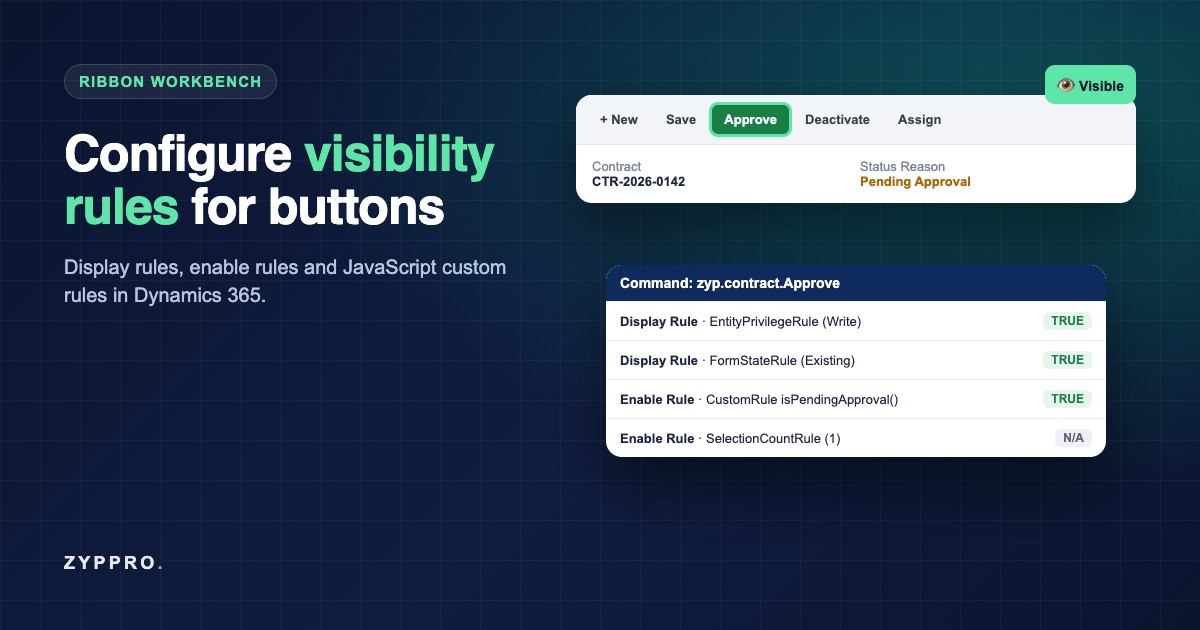
Showing a button only to the right users, at the right time, on the right records is one of the most common Dynamics 365 customisation requests:
- "Only show Approve when the status is Pending Approval."
- "Hide Deactivate from everyone except managers."
- "Show Create Invoice only on existing records, not on new ones."
In model-driven apps and Dynamics 365, this is controlled by ribbon rules. The most popular tool for editing them is Ribbon Workbench by Develop 1, used through XrmToolBox or as a managed solution. This guide explains how visibility works, the difference between display and enable rules, and how to configure each type step by step, including JavaScript custom rules.
How command visibility works
Every button on the command bar (historically called the ribbon) is made of:
- a button (label, icon, position)
- a command, which defines the action (JavaScript function, URL or none) and the rules
- display rules, which decide whether the button is shown at all
- enable rules, which decide whether the button is enabled
An important Unified Interface detail
In the classic web client, a button failing an enable rule was shown greyed out. In Unified Interface (model-driven apps), a button whose enable rule returns false is hidden. That's why, in practice, developers use enable rules for most dynamic show/hide logic, including JavaScript custom rules.
Display rules vs enable rules
| Display rules | Enable rules | |
|---|---|---|
| Evaluated | When the command bar loads | When the bar loads and when refreshed |
| JavaScript custom rules | Not supported | Supported (CustomRule) |
| Typical use | Static conditions: privileges, form state, client type | Dynamic conditions: field values, selection count, custom logic |
Refresh with refreshRibbon() |
Not re-evaluated in the same way | Re-evaluated |
Rule of thumb: use display rules for static, permission-based visibility. Use enable rules for anything based on data or custom logic.
Before you start
- Create a small solution containing only the table(s) whose buttons you want to change. Ribbon Workbench loads faster and publishes more safely with a minimal solution.
- Add the table without its components (no forms, columns or views needed).
- Install Ribbon Workbench from the XrmToolBox tool library, or install the Ribbon Workbench solution in your environment.
- Back up the solution or work in a development environment.
- If you'll use JavaScript, create a JavaScript web resource in the same solution first.
Step-by-step: hide a button with a display rule
Scenario: show the custom Approve button only to users with write privilege on the record's table.
- Open Ribbon Workbench and load your solution.
- Select the table in the left panel. You'll see three areas: Home (main grid), SubGrid and Form command bars.
- Select your button and look at its Command in the properties panel. If it has no command, create one in the Commands section and assign it to the button.
- In the Display Rules section, click + to add a new rule. Give it a meaningful ID, for example
zyp.contract.DisplayRule.CanWrite. - Click Add Step and choose EntityPrivilegeRule:
- PrivilegeType: Write
- PrivilegeDepth: Basic
- AppliesTo: PrimaryEntity
- Open your command, and under Display Rules add the new rule.
- Click Publish.
Users without write access to the table no longer see the button.
Other useful display rule steps
- FormStateRule: show only when the form is in a specific state (Create, Existing, ReadOnly, Disabled, BulkEdit). For example, hide Create Invoice on new records by requiring Existing.
- MiscellaneousPrivilegeRule: check a non-table privilege, such as Export to Excel.
- OrganizationSettingRule: show based on an organisation setting.
- CrmClientTypeRule: show only in certain clients.
- ValueRule: check a column value on the form (only on forms, and based on the value when the form loads).
- OrRule: combine several rules where any one can pass.
Use Invert Result on a step to negate the condition (for example "not in create state").
Step-by-step: show a button based on a field value (enable rule)
Scenario: show Approve only when Status Reason equals Pending Approval (value 100000001).
Option 1: ValueRule (no code)
- In Enable Rules, click + and name it
zyp.contract.EnableRule.IsPending. - Add Step → ValueRule:
- Field:
statuscode - Value:
100000001 - Default: False
- Field:
- Add the enable rule to the command and publish.
Limitation: ValueRule works on forms, and the value is checked against what's on the form, which may not update immediately when the field changes. Call formContext.ui.refreshRibbon() in the field's OnChange event to re-evaluate.
Option 2: CustomRule (JavaScript), the most flexible
- Create a JavaScript web resource, for example
zyp_/js/contract.ribbon.js:
var Zyp = Zyp || {};
Zyp.ContractRibbon = {
    isPendingApproval: function (primaryControl) {
        var formContext = primaryControl;
        var status = formContext.getAttribute("statuscode");
        return status !== null && status.getValue() === 100000001;
    }
};
- In Ribbon Workbench, create an enable rule
zyp.contract.EnableRule.IsPendingJs. - Add Step → CustomRule:
- Library:
$webresource:zyp_/js/contract.ribbon.js - FunctionName:
Zyp.ContractRibbon.isPendingApproval - Default: False
- Parameters: add Crm Parameter → PrimaryControl
- Library:
- Add the enable rule to the command and publish.
- In the form's
statuscodeOnChange handler, callformContext.ui.refreshRibbon()so the button appears as soon as the value changes.
Step-by-step: show a button only for a security role
Scenario: only users with the Sales Manager role can see Approve Discount.
Privilege rules can't check role names directly, so use a CustomRule:
Zyp.ContractRibbon.isSalesManager = function () {
    var roles = Xrm.Utility.getGlobalContext().userSettings.roles;
    var allowed = false;
    roles.forEach(function (role) {
        if (role.name === "Sales Manager") { allowed = true; }
    });
    return allowed;
};
Register it as a CustomRule in an enable rule, with no parameters, default False.
Tip: checking a privilege (for example a custom table privilege) is more robust than checking role names, because role names can change and differ by language. Where possible, create a dedicated table or privilege and use an EntityPrivilegeRule.
Asynchronous custom rules (calling the Web API)
Sometimes visibility depends on data that isn't on the form, such as "does this account have open invoices?". Custom rules in Unified Interface can return a Promise:
Zyp.AccountRibbon.hasOpenInvoices = function (primaryControl) {
    var id = primaryControl.data.entity.getId().replace(/[{}]/g, "");
    return Xrm.WebApi.retrieveMultipleRecords(
        "invoice",
        "?$select=invoiceid&$filter=_customerid_value eq " + id + " and statecode eq 0&$top=1"
    ).then(function (result) {
        return result.entities.length > 0;
    }, function () {
        return false;
    });
};
Performance tip: cache results in a variable for the life of the form, because enable rules can be evaluated several times. Asynchronous rules should be fast; slow calls delay the command bar.
Grid and subgrid buttons
For buttons on views and subgrids:
- Use SelectionCountRule to require exactly one selected record (Minimum 1, Maximum 1) or at least one.
- Pass SelectedControlSelectedItemIds or SelectedControl as CRM parameters to a CustomRule to evaluate the selected rows.
- Remember the Home command bar (main grid) and SubGrid command bar are configured separately from the Form command bar.
Hiding out-of-the-box buttons
To hide a standard button (for example Deactivate or Assign):
- Right-click the button in Ribbon Workbench.
- Choose Customise Command to add your own rules while keeping its original behaviour, or Hide to remove it completely.
- If you customise the command, add your display or enable rules and publish.
Note: "Customise Command" copies the original command and its rules. Microsoft may update the original command later; your customised copy will not receive those updates, so use it only when needed.
Troubleshooting visibility rules
The button still shows (or doesn't):
- Use the Command Checker: add
&ribbondebug=trueto the app URL, open the command bar and select Command checker to see each rule's result. - Check that the rule is attached to the correct command and the command is attached to the button.
- Confirm you're editing the correct command bar (Form, Home or SubGrid).
Custom rule not firing:
- Verify the library name exactly matches the web resource name, including the prefix and folder.
- Confirm the function name includes the namespace (
Zyp.ContractRibbon.isPendingApproval). - Check the browser console for script errors.
- Make sure the JavaScript web resource is published.
Button doesn't update after a field changes:
- Call
formContext.ui.refreshRibbon()in the OnChange event.
Publishing errors:
- Reduce the solution to only the needed tables.
- Check for missing dependencies, such as a web resource that isn't in the solution.
Ribbon Workbench vs the modern command designer
Microsoft's modern command designer in the Power Apps maker portal lets you create buttons using Power Fx for both action and visibility (for example Self.Selected.Item.Status = 'Status (Contracts)'.'Pending Approval'). It's great for new buttons in model-driven apps.
Ribbon Workbench is still widely used because it:
- supports all classic rule types, including EntityPrivilegeRule and SelectionCountRule
- can customise and hide out-of-the-box commands
- works with existing JavaScript-based commands in large Dynamics 365 implementations
Many projects use both: the modern designer for new, simple commands and Ribbon Workbench for complex rules and standard buttons.
Best practices
- Use clear naming:
prefix.table.RuleType.Purpose. - Keep custom rule functions small and fast.
- Prefer privilege checks over role-name checks.
- Always set a sensible default (usually False) for custom rules.
- Document rules in your solution notes; they are hard to discover later.
- Test with different security roles and form states before release.
How Zyppro can help
Zyppro Technologies customises Dynamics 365 and model-driven apps every day: ribbon and command bar logic, JavaScript, plugins, PCF controls and complete solutions. If you need help with a tricky button, or experienced developers for your project, we provide contract developers and live job support worldwide.
Visit www.zyppro.com or email contact@zyppro.com.