Power Automate Reminder Flows: Send Automated Reminders & Approval Notification
Learn how to build Power Automate reminder and approval flows that automatically notify users, track pending actions, send follow-ups, and reduce manual effort
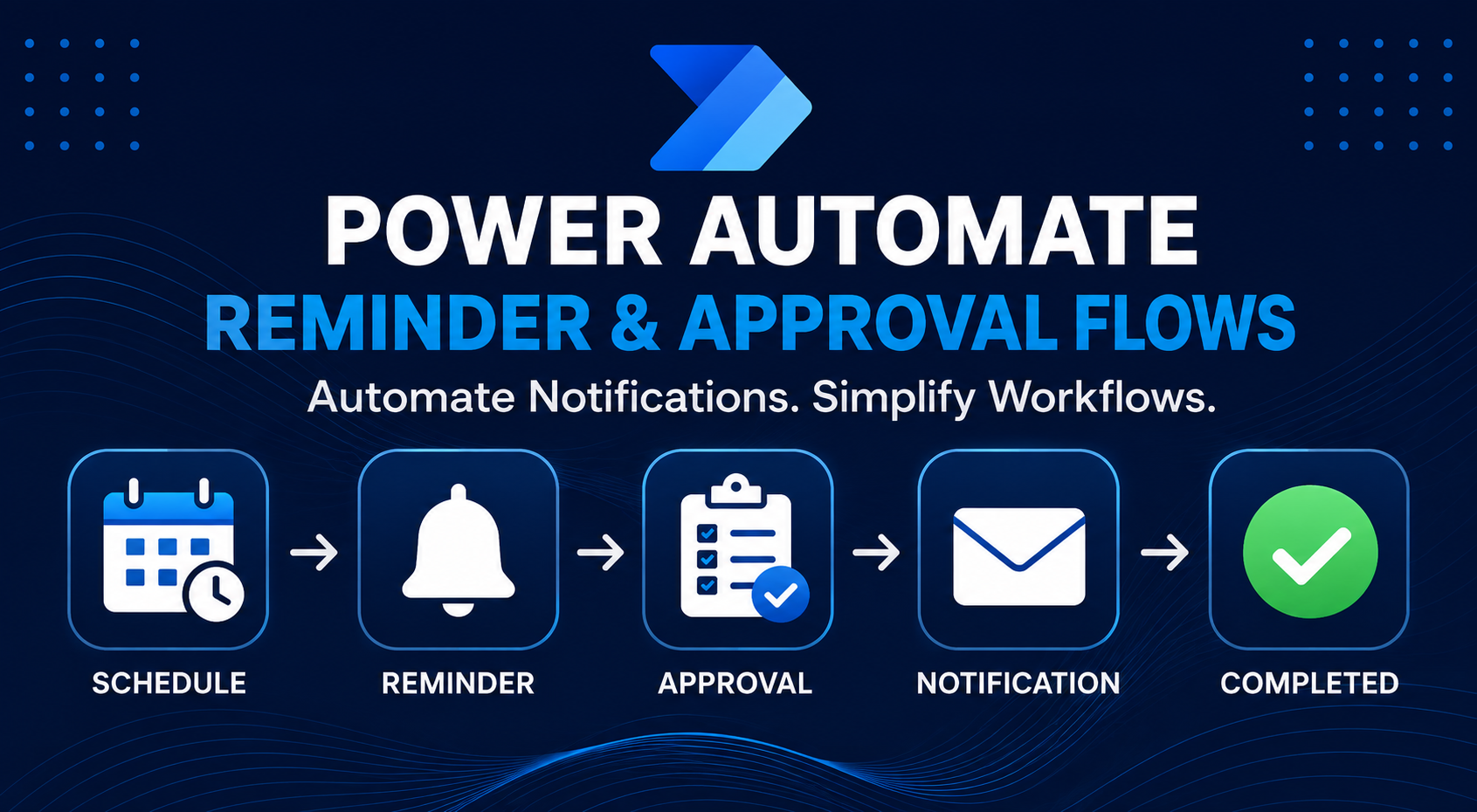
Power Automate Reminder Flows: How to Send Automated Reminders and Approval Notifications
Managing approvals, employee submissions, task deadlines, and business processes manually can quickly become difficult.
Teams often depend on emails, spreadsheets, messages, and manual follow-ups to determine whether someone has completed an action. As the number of employees, requests, and approvals increases, this approach becomes inefficient.
Microsoft Power Automate provides a practical way to automate these processes.
With Power Automate, organizations can build workflows that automatically check records, identify pending actions, send reminders, notify approvers, and update records when an action is completed.
In this guide, we will look at how to design a Power Automate reminder flow, how to create approval reminder workflows, and how to structure these automations for real-world business applications.
What Is a Power Automate Reminder Flow?
A Power Automate reminder flow is an automated workflow that checks whether a required action has been completed and sends a notification when an action is still pending.
For example, a company may require employees to submit a daily report.
Instead of having a manager manually check who has submitted a report, Power Automate can:
Check the list of employees. Check whether today's report exists. Identify employees who have not submitted their report. Send a reminder. Send another reminder later if necessary. Stop sending reminders once the report is submitted.
This creates a consistent process without requiring someone to manually monitor the workflow.
Common Business Uses for Reminder Flows
Reminder flows can be used across many departments and business processes.
Common examples include:
Employee daily report reminders Timesheet submission reminders Invoice approval reminders Purchase request reminders Contract approval reminders Document review reminders Compliance reminders Task deadline reminders Leave approval reminders Customer follow-up reminders Audit reminders Training completion reminders Project milestone reminders Expense approval reminders
The same basic automation pattern can be adapted to many different scenarios.
How a Power Automate Reminder Flow Works
A typical reminder workflow follows this structure:
Schedule → Get Records → Check Status → Filter Pending Items → Send Reminder → Update/Track Status
For example:
Every morning at 8:00 AM
↓
Get employee records
↓
Check today's submission
↓
Find employees with no submission
↓
Send reminder
↓
Check again later
↓
Send final reminder if still missing
This approach can be implemented using SharePoint, Dataverse, Microsoft Lists, Excel, SQL Server, or other supported data sources.
Step 1: Choose the Trigger
For scheduled reminders, the most common trigger is:
Recurrence
The Recurrence trigger allows the flow to run automatically at a defined time or frequency.
For example:
Run every weekday at 8:00 AM.
You can configure the recurrence based on:
Frequency Interval Time zone Start time
For business processes, make sure the correct time zone is configured so that notifications are sent at the expected local time.
Step 2: Retrieve the Records
After the flow starts, retrieve the records that need to be evaluated.
For example, if employee reporting data is stored in SharePoint, you might use:
Get items
The flow can then retrieve the employees or report records that need to be checked.
For larger implementations, filtering records as early as possible can help reduce unnecessary processing.
Step 3: Identify Pending Actions
The next step is to determine which records still require an action.
For example:
Report Status = Pending
or:
Submitted Date is empty
or:
Approval Status = Pending
The exact condition depends on how the business process is designed.
A good workflow should have a clear status model, such as:
Pending Submitted Approved Rejected Completed Overdue
This makes automation logic easier to maintain.
Step 4: Send the Reminder
Once Power Automate identifies a pending action, the flow can send a notification.
Depending on the business requirement, the notification can be sent through:
Email Microsoft Teams Push notification Adaptive Card Other supported connectors
A simple reminder could say:
Reminder: Action Required
Your daily report has not yet been submitted. Please complete your report before the submission deadline.
For approvals, the message can include:
Request name Requester Submission date Approval status Due date Link to the request Creating Multiple Reminder Levels
For important processes, sending only one reminder may not be enough.
A better approach is to create multiple reminder stages.
For example:
First Reminder — 8:00 AM
Send a reminder to everyone who needs to complete the task.
Second Reminder — 10:00 AM
Send a reminder only to users who still have not completed the task.
Final Reminder — 11:00 AM
Send a final reminder to the remaining users.
After the final reminder, the flow stops sending notifications for that day.
This approach reduces unnecessary notifications because users who have already completed the task do not continue receiving reminders.
Power Automate Approval Reminder Flow
Approval workflows are another common use case.
Imagine an employee submits a purchase request.
The workflow could be:
Employee submits request
↓
Manager receives approval request
↓
Manager approves or rejects
↓
If pending → reminder
↓
If approved → continue workflow
↓
If rejected → notify requester
The challenge is that an approval can remain pending for several hours or even days.
A reminder mechanism can help prevent requests from being forgotten.
How to Track Pending Approvals
Instead of relying only on the approval itself, maintain a record of the approval in your business data source.
For example, a SharePoint list or Dataverse table could contain:
Field Example Request ID REQ-1025 Requester John Smith Approver Jane Smith Status Pending Submitted Date August 23 Due Date August 25 Reminder Count 1 Last Reminder August 24
This gives the organization a reliable record of what happened.
Sending Approval Reminders
A scheduled flow can periodically check pending approval records.
For example:
Every 4 hours
↓
Find records where:
Status = Pending
↓
Check whether the reminder is due
↓
Send reminder
↓
Update:
Reminder Count Last Reminder Date
This creates a controlled reminder process.
Avoid Sending Duplicate Reminders
One of the most important considerations when building reminder flows is preventing duplicate notifications.
For example, if the flow runs every hour but your reminder should only be sent once per day, the flow should check when the previous reminder was sent.
You can maintain a field such as:
Last Reminder Date
Then check whether a reminder has already been sent for the current day.
You can also maintain:
Reminder Count
This allows the workflow to enforce a maximum number of reminders.
For example:
Reminder Count < 3
Once the maximum number of reminders has been reached, the workflow stops sending additional notifications.
Stop the Reminder When the User Completes the Action
This is one of the most important parts of the workflow.
Suppose a user receives a reminder at 8:00 AM and completes the task at 8:30 AM.
The 10:00 AM reminder should not be sent.
Therefore, every reminder stage should verify the current status before sending the notification.
The logic should be:
Is the task completed?
YES → Do not send reminder
NO → Send reminder
This makes the workflow more intelligent and prevents notification fatigue.
Example: Employee Daily Report Reminder
Consider an organization where employees must submit a daily BOD report.
The automation could work like this:
8:00 AM
Power Automate checks today's records.
Employees who have not submitted their report receive a reminder.
10:00 AM
Power Automate checks again.
Only employees who still have not submitted their report receive another reminder.
11:00 AM
The flow performs a final check.
Employees who still have not submitted their report receive the final reminder.
After this point, the automated reminders stop.
This type of workflow can significantly reduce manual follow-up for managers and administrators.
Using SharePoint With Power Automate
SharePoint Lists are commonly used as the data source for reminder workflows.
A list might contain:
Employee Email Report Date Report Status Submitted Date Reminder Count Last Reminder Date
Power Automate can then read these records and determine which users require notifications.
This is particularly useful for organizations already using Microsoft 365 and SharePoint.
Using Dataverse With Power Automate
For larger Power Platform applications, Dataverse can be a better choice for structured business data.
Dataverse can store:
Requests Approvals Employees Status Dates Reminder history Relationships between records
Power Automate can then use Dataverse triggers and actions to automate the process.
This approach is particularly useful when the workflow is part of a larger Power Apps, Dynamics 365, or Power Platform solution.
Reminder Flow vs Approval Flow
Although they are related, reminder flows and approval flows serve different purposes.
Reminder Flow
The primary purpose is:
Notify someone that an action is still required.
Approval Flow
The primary purpose is:
Obtain a decision from an authorized person.
They can also be combined.
For example:
Request submitted
→
Approval created
→
Wait for decision
→
If pending for too long → send reminder
→
Approval completed
→
Continue workflow
This creates a complete automated business process.
Best Practices for Power Automate Reminder Flows
- Define the status clearly
Use consistent statuses such as:
Pending → In Progress → Completed
or:
Pending → Approved → Rejected
Avoid using unclear combinations of multiple fields when one status field can represent the current state.
- Always check the latest status
Before sending a reminder, verify that the action is still pending.
This prevents unnecessary notifications.
- Limit reminder frequency
Too many notifications can frustrate users.
Define:
First reminder Second reminder Final reminder
and stop after the required limit.
- Store reminder history
Track information such as:
Last reminder date Reminder count Reminder type
This makes troubleshooting and reporting easier.
- Use meaningful notification messages
A reminder should tell the user:
What needs to be done?
When does it need to be completed?
Where can they complete it?
For example:
Your approval for Request #REQ-1025 is still pending. Please review the request and submit your decision.
- Include a direct link
Whenever possible, include a direct link to:
Power App SharePoint item Approval Business application Request record
This reduces the number of steps required from the user.
- Handle weekends and holidays
Not every reminder should run every day.
For business processes, consider whether reminders should run:
Monday–Friday only During working hours Excluding holidays Based on the user's region 8. Design for failure
Connectors can fail, users can be removed, records can change, and external systems can become unavailable.
Use appropriate error handling and monitoring so that a failed notification does not silently stop the entire business process.
Example Reminder Architecture
A practical architecture could look like this:
Scheduled Trigger
↓
Get Pending Records
↓
Filter Records
↓
Check Completion Status
↓
Is Action Still Pending?
/
YES NO
↓ ↓
Send Stop
Reminder
↓
Update Reminder History
↓
End
For an approval process:
Request Submitted
↓
Create Approval
↓
Notify Approver
↓
Approval Pending
↓
Scheduled Reminder Check
↓
Still Pending?
/
YES NO
↓ ↓
Reminder Complete
↓
Update Reminder Count
Final Thoughts
Power Automate reminder workflows are a simple but powerful way to reduce manual follow-up.
Instead of managers repeatedly checking spreadsheets, emails, or applications, Power Automate can automatically identify pending actions and notify the right people at the right time.
The most effective reminder workflows are not simply about sending more notifications. They are about sending the right notification to the right person only when an action is still required.
Whether you are managing employee reports, approvals, invoices, contracts, tasks, audits, or business requests, the same fundamental automation principles can be applied.
With a well-designed Power Automate workflow, organizations can create more consistent processes, improve accountability, and reduce the amount of manual administration required to keep work moving.