Power Apps Explained: Canvas vs Model-Driven Apps and When to Use Each
What Power Apps is, how canvas and model-driven apps differ, real business use cases and best practices for building your first app.
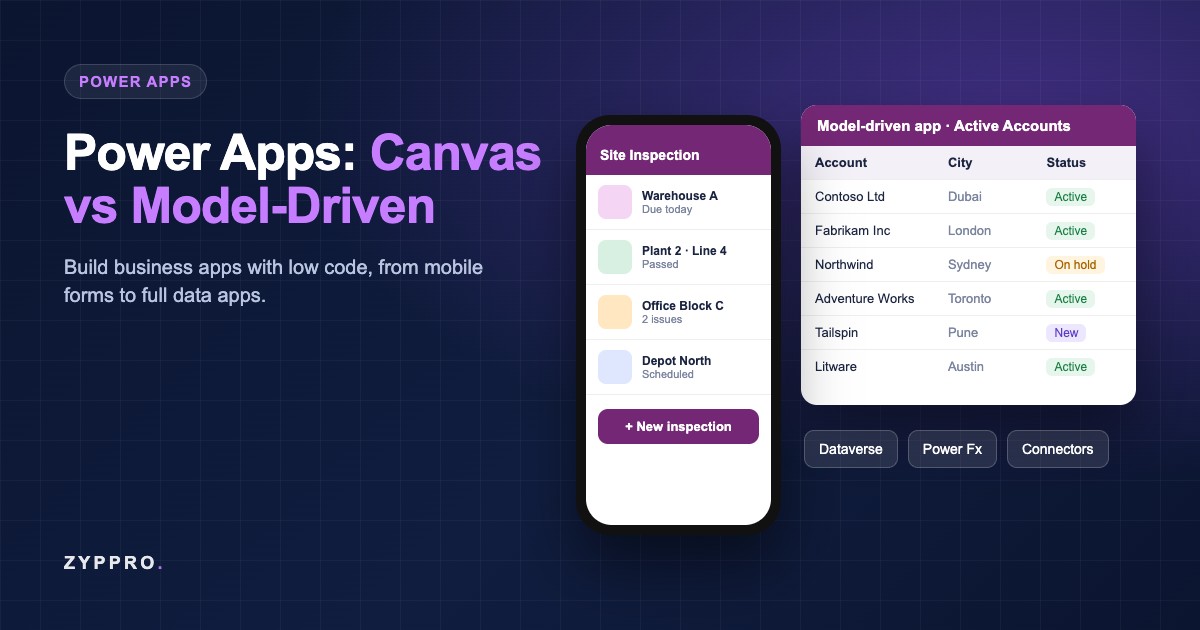
Most businesses still run important processes on spreadsheets, paper forms and email. Microsoft Power Apps lets you replace them with proper business apps, built quickly with low code, secured with Microsoft 365 accounts and usable on web, tablet and phone.
But the first question every team asks is: canvas app or model-driven app? This guide explains both, shows where each fits, and shares the practices that make Power Apps projects succeed.
What is Power Apps?
Power Apps is part of the Microsoft Power Platform, alongside Power Automate, Power BI, Power Pages and Copilot Studio. It lets you build apps that:
- read and write data in Dataverse, SharePoint, SQL Server, Excel and hundreds of other sources through connectors
- run in a browser, in Microsoft Teams or in the Power Apps mobile app
- use Microsoft Entra ID for sign-in and security
- trigger Power Automate flows for approvals, notifications and integrations
There are two main types of app.
Canvas apps
A canvas app starts from a blank screen. You drag controls (galleries, forms, buttons, images) onto it and write logic in Power Fx, an Excel-like formula language.
Strengths
- complete control over layout and design
- excellent for mobile and tablet use
- can combine many data sources in one app
- quick to build for focused tasks
Typical examples
- site inspection or audit app with photos and signatures
- expense or leave request app
- stock count app with barcode scanning
- visitor check-in on a tablet
Watch out for
- delegation: with large data sources, make sure filters and searches run on the server, not in the app
- maintaining many screens and formulas as the app grows
Model-driven apps
A model-driven app is generated from your Dataverse data model. You define tables, relationships, forms, views, business rules and business process flows; Power Apps builds a consistent, responsive interface automatically. Dynamics 365 Sales and Customer Service are themselves model-driven apps.
Strengths
- ideal for complex, data-heavy processes with many related records
- built-in security, auditing, views, charts and dashboards
- consistent user experience with little UI work
- extensible with JavaScript, plugins and PCF controls
Typical examples
- case or complaint management
- project and resource tracking
- asset and contract management
- partner or supplier onboarding
Watch out for
- less freedom over layout than canvas apps
- requires Dataverse and good data model design up front
Side-by-side comparison
| Canvas app | Model-driven app | |
|---|---|---|
| Starting point | Blank screen | Dataverse data model |
| Design control | Full | Standardised layout |
| Best for | Task-focused and mobile apps | Complex, data-centric processes |
| Data sources | Many connectors | Dataverse |
| Logic | Power Fx | Business rules, flows, JavaScript, plugins |
| Typical users | Field staff, frontline teams | Back-office, service and sales teams |
Can you use both?
Yes, and many solutions do. A model-driven app can run the back office while a canvas app gives field staff a simple mobile experience on the same Dataverse data. You can also embed canvas apps or custom pages inside model-driven apps.
Where Copilot fits in
Power Apps now includes Copilot features that help makers describe an app or table in plain language and get a starting point, and help users interact with data. These speed up the first draft, but good data design and testing still decide whether an app succeeds.
Licensing in brief
Apps using standard connectors (such as SharePoint and Office 365) are often covered by many Microsoft 365 licences. Apps using Dataverse or premium connectors need Power Apps licences, either per user or per app. Licensing changes regularly, so check Microsoft's current licensing guide before you plan a rollout.
Best practices for your first Power Apps project
- Start with one painful process. Replace a spreadsheet or paper form everyone dislikes.
- Design the data first. Decide tables, columns and relationships before building screens.
- Use solutions and environments. Build in development, test in a test environment and deploy managed solutions to production.
- Respect governance. Use data loss prevention (DLP) policies and the CoE Starter Kit to keep citizen development under control.
- Plan for delegation and performance in canvas apps from day one.
- Involve users early. Show a working prototype in the first week and improve from feedback.
How Zyppro can help
Zyppro Technologies designs and builds canvas apps, model-driven apps, Power Pages portals and Power Automate solutions on Dataverse, SharePoint and Dynamics 365. From quick prototypes to enterprise apps with full ALM and governance, we deliver anywhere in the world. We also provide Power Platform developers on contract and live job support.
Have a process you want to turn into an app? Visit www.zyppro.com or email contact@zyppro.com.