Power Apps and Power Automate: Building Low-Code Business Solutions
How Power Apps and Power Automate work together to build custom business apps and automate workflows, with use cases and governance tips.
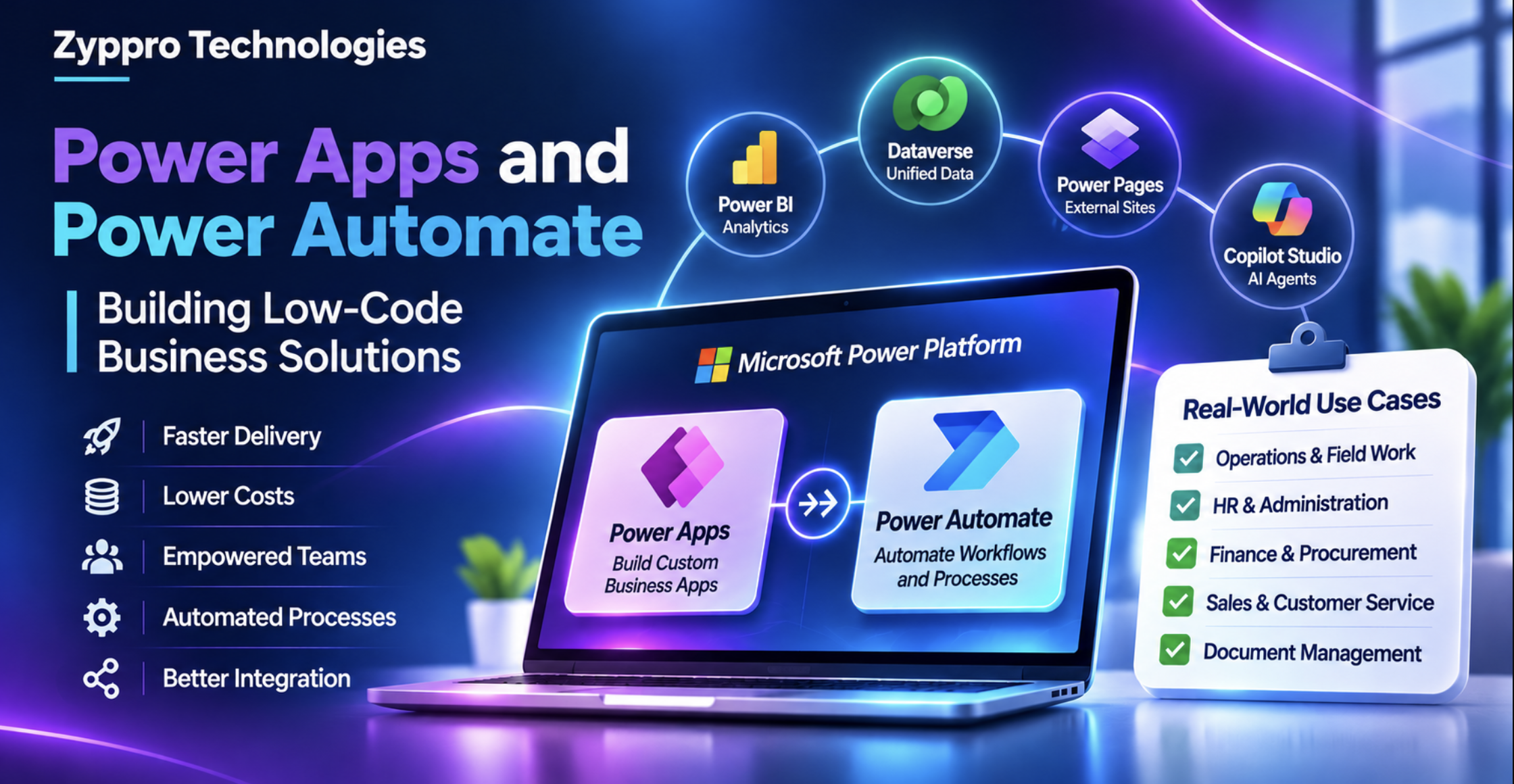
Power Apps and Power Automate: Building Low-Code Business Solutions
Every organisation has processes that are still handled with spreadsheets, emails, paper forms, and manual follow-ups. These processes rarely justify a full custom software project, yet together they consume a huge amount of time and create avoidable errors.
Power Apps and Power Automate, two core tools in Microsoft's Power Platform, are designed for exactly this gap. Power Apps lets organisations build custom business applications quickly, while Power Automate handles the workflows and automation behind them. In this guide, we explain what each tool does, how they work together, practical use cases, and the best practices that make low-code solutions succeed.
What Is the Microsoft Power Platform?
The Power Platform is Microsoft's suite of low-code tools for building business solutions. It includes:
- Power Apps for building applications.
- Power Automate for automating workflows.
- Power BI for analytics and reporting.
- Power Pages for building external-facing websites.
- Copilot Studio for building AI agents and chatbots.
These tools share connectors, security, and the Microsoft Dataverse data platform, so solutions built with one tool work naturally with the others.
What Is Power Apps?
Power Apps lets users build custom applications with minimal code, using a visual designer and a formula language called Power Fx, which will feel familiar to anyone who has written Excel formulas.
Types of Power Apps
Canvas apps give designers full control over layout. You start with a blank screen and place controls such as forms, galleries, buttons, and images exactly where you want them. Canvas apps are ideal for task-focused and mobile apps, such as inspections, field data capture, or approvals on the go.
Model-driven apps are built on Dataverse and generated from the data model. You define tables, forms, views, and business processes, and Power Apps creates a consistent, responsive interface. Model-driven apps suit data-rich, process-heavy applications, and they use the same framework as Dynamics 365 applications.
Connecting to Data
Power Apps can connect to a wide range of data sources through more than a thousand connectors, including SharePoint, Dataverse, SQL Server, Excel, Outlook, Teams, Salesforce, and many others. Custom connectors allow integration with internal or third-party APIs.
What Is Power Automate?
Power Automate automates repetitive tasks and business processes across applications and services.
Types of Flows
- Automated cloud flows run when an event occurs, such as an email arriving, a file being uploaded to SharePoint, or a record being created in Dataverse.
- Instant cloud flows run when a user triggers them, for example by pressing a button in an app or in Teams.
- Scheduled cloud flows run at set times, such as a daily report or a weekly reminder.
- Desktop flows use robotic process automation (RPA) to automate tasks in desktop applications and legacy systems that do not have APIs.
Built-In Approvals
Power Automate includes an approvals capability that sends requests through email, Teams, and the Power Automate mobile app. Approvers can respond with one click, and results flow straight back into the process.
Process Mining
Power Automate's process mining capabilities analyse how processes actually run, using data from business systems, and highlight bottlenecks and automation opportunities.
How Power Apps and Power Automate Work Together
The real power comes from combining the two. Power Apps provides the user interface where people enter and review information, while Power Automate handles what happens behind the scenes.
A typical example is an expense claim solution:
- An employee submits a claim and uploads receipts through a Power App on their phone.
- A Power Automate flow sends the claim to their manager for approval in Teams.
- If the amount exceeds a threshold, the flow routes it to finance for a second approval.
- Once approved, the flow updates the record, notifies the employee, and sends the data to the finance system.
The employee sees a simple app. The organisation gets a consistent, auditable process without manual chasing.
Practical Business Use Cases
Operations and Field Work
- Site inspection and safety audit apps with photos and checklists.
- Asset and equipment tracking.
- Maintenance request and work order apps.
HR and Administration
- Leave requests and approvals.
- Employee onboarding and offboarding checklists.
- Official letter generation with approval workflows.
Finance and Procurement
- Purchase requests and multi-level approvals.
- Invoice intake and processing.
- Budget request tracking.
Sales and Customer Service
- Extensions to Dynamics 365 CRM for specialised processes.
- Automated follow-ups and notifications.
- Customer feedback capture and routing.
Document Management
- SharePoint document approvals.
- Automated filing and metadata tagging.
- Archiving closed project folders.
Copilot and AI in the Power Platform
Microsoft has embedded Copilot across Power Apps and Power Automate. Users can describe an app or flow in plain language, and Copilot generates a starting point that they can refine. AI Builder adds prebuilt AI models for tasks such as extracting information from invoices and forms, reading text in images, and classifying content, all within Power Apps and Power Automate.
These capabilities lower the barrier to entry and speed up delivery, while experienced makers and developers still refine and govern the final solution.
Business Benefits
- Faster delivery, with apps and workflows built in weeks rather than months.
- Lower development costs compared with fully custom software.
- Empowered business teams, as people who understand a process can help build its solution.
- Consistent, auditable processes, replacing email chains and spreadsheets.
- Better integration, connecting Microsoft 365, Dynamics 365, and third-party systems.
- Mobile access for staff in the field.
Governance: The Key to Low-Code Success
Low-code makes building easy, which also means it can grow out of control without the right guardrails. Good governance includes:
Environment Strategy
Use separate environments for development, testing, and production. Keep personal productivity apps separate from business-critical solutions.
Data Loss Prevention Policies
Data loss prevention (DLP) policies control which connectors can be used together, helping prevent sensitive business data from flowing into unapproved services.
Managed Environments and Monitoring
Managed Environments in the Power Platform admin center provide additional controls, such as sharing limits, usage insights, and solution checker enforcement. The Center of Excellence (CoE) Starter Kit helps organisations monitor apps, flows, and makers across the tenant.
Ownership and Support
Every business-critical app and flow should have a named owner, documentation, and a support plan. Avoid running important processes under personal accounts that may leave the organisation.
Best Practices for Building Solutions
- Start with a clear process. Map the workflow before building. Automating a broken process simply makes it fail faster.
- Choose the right data source. Use SharePoint lists for simple needs and Dataverse for complex data, security, or scale.
- Use solutions. Package apps and flows in solutions so they can be moved between environments in a controlled way.
- Handle errors in flows. Add error handling, retries, and notifications so failures do not go unnoticed.
- Design for users. Keep app screens simple and focused on the task. Test with real users early.
- Use service accounts or connection references for production flows instead of individual user connections.
- Know when to go pro-code. For heavy processing, complex integrations, or strict transactional logic, combine low-code with Azure Functions, plugins, or custom APIs.
Conclusion
Power Apps and Power Automate allow organisations to replace manual, spreadsheet-driven processes with modern apps and automated workflows, quickly and cost-effectively. Together with Dataverse, Copilot, and the wider Microsoft ecosystem, they form a powerful platform for digital transformation. The key to lasting success is pairing speed with structure: clear processes, the right data platform, and strong governance.
At Zyppro Technologies, we design and build Power Apps, Power Automate workflows, and complete Power Platform solutions, from quick wins to enterprise-grade applications. Explore our Power Automate solutions, or tell us what you're building and we'll help you turn manual processes into efficient digital workflows.