Microsoft SharePoint for Business: Features, Uses and Best Practices
How businesses use Microsoft SharePoint for documents, intranets and collaboration, plus the best practices that keep it organised and secure.
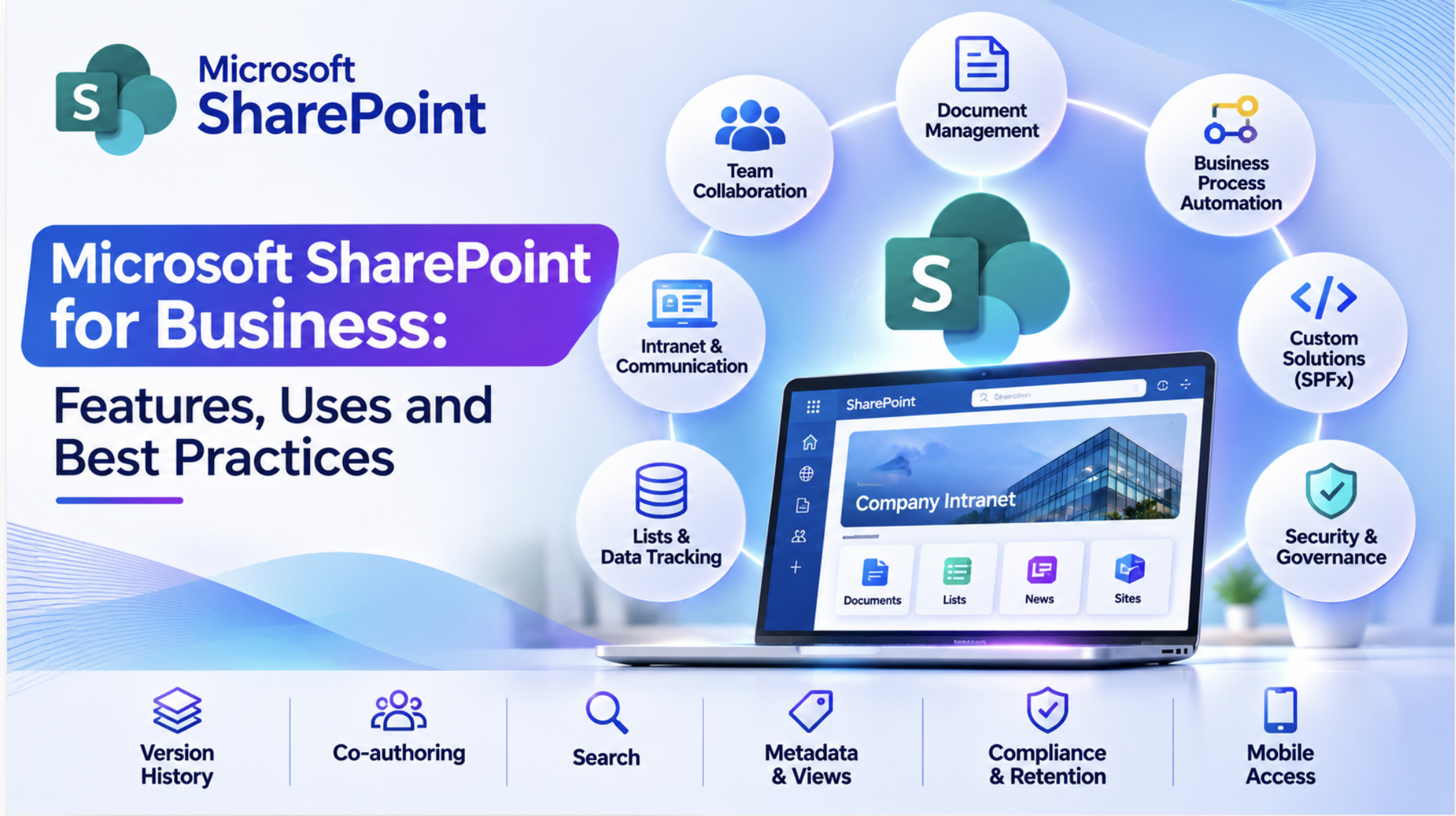
Microsoft SharePoint for Business: Features, Uses and Best Practices
Most organisations already pay for SharePoint as part of Microsoft 365, yet many use only a fraction of what it can do. In some companies it is a forgotten file dump. In others it quietly powers the intranet, document control, project workspaces, and every file shared in Microsoft Teams.
The difference is not the software. It is how SharePoint is planned, structured, and governed. In this guide, we explain what Microsoft SharePoint for business offers, the most valuable ways to use it, and the best practices that keep it organised, secure, and genuinely useful.
What Is Microsoft SharePoint?
SharePoint is Microsoft's platform for content management, collaboration, and intranet sites. In its cloud form, SharePoint Online, it is included in most Microsoft 365 business and enterprise plans.
At its simplest, SharePoint is where an organisation stores, organises, shares, and manages its information. It is also the storage layer behind much of Microsoft 365: files shared in Teams channels live in SharePoint, and many Microsoft Lists and Loop components sit on top of it.
Core Building Blocks
Sites
Everything in SharePoint lives in a site. There are two main types:
- Team sites are built for collaboration. They are typically connected to a Microsoft 365 group and often to a Microsoft Teams team, giving members a shared space for documents, lists, and pages.
- Communication sites are built for broadcasting information to a wider audience, such as an HR portal, company news, or policy centre.
Hub sites connect related sites under shared navigation and branding, for example grouping all department sites under one intranet experience.
Document Libraries
Document libraries store files with features that ordinary file shares lack: version history, check-in and check-out, co-authoring, metadata, approval workflows, and fine-grained permissions.
Lists
Lists store structured data in rows and columns, similar to a lightweight database. They are ideal for trackers such as asset registers, requests, issue logs, or event calendars, and they work seamlessly with Power Apps and Power Automate.
Pages and Web Parts
Modern pages are built from web parts such as news, quick links, document views, events, and embedded content. When standard web parts are not enough, developers can build custom ones using the SharePoint Framework (SPFx).
Common Business Use Cases
1. Document Management
SharePoint replaces network drives with searchable, version-controlled, permission-aware storage. Metadata lets teams classify documents by client, project, type, or status, so files can be filtered and found without relying on deep folder structures.
2. Company Intranet
A communication-site-based intranet gives employees one place for news, policies, forms, directories, and announcements. With hub sites and audience targeting, content can be tailored to departments, regions, or roles.
3. Team and Project Collaboration
Team sites connected to Microsoft Teams give each project or department a shared workspace. Members co-author documents in real time, track tasks in lists, and keep conversations and files together.
4. Business Process Automation
Combined with Power Automate, SharePoint becomes a workflow engine. Common examples include document approvals, request forms, contract review, onboarding checklists, and automated archiving of closed project folders.
5. Custom Business Applications
Using Power Apps with SharePoint lists, organisations build lightweight apps for inspections, leave requests, inventory checks, and more. For richer experiences, SPFx web parts can deliver custom dashboards, calendars, and integrations directly on SharePoint pages.
6. Knowledge Management
Policies, procedures, and how-to guides stored in SharePoint are searchable across Microsoft 365. With Microsoft 365 Copilot, users can ask questions in natural language and receive answers grounded in the content they have permission to access.
Key Features That Add Business Value
- Version history protects against accidental changes and supports audit requirements.
- Co-authoring lets multiple people edit Word, Excel, and PowerPoint files at the same time.
- Metadata and views turn libraries into organised, filterable repositories.
- Search finds content across sites, files, and people.
- External sharing allows secure collaboration with clients and partners, under admin-defined rules.
- Retention and sensitivity labels through Microsoft Purview help meet compliance obligations.
- Mobile access through the SharePoint and Teams apps keeps information available anywhere.
Best Practices for a Successful SharePoint Rollout
1. Plan Your Information Architecture
Before creating sites, decide how information should be organised. Think in terms of a flat structure of sites connected by hubs, rather than deep nested subsites. Define which content belongs in team sites, which belongs on the intranet, and how navigation will work.
2. Use Metadata Instead of Deep Folders
Deeply nested folders make files hard to find and can create long file paths that cause sync problems. Use a small number of top-level folders where helpful, and rely on metadata columns and views for classification.
3. Keep Permissions Simple
Permission sprawl is one of the most common SharePoint problems. Wherever possible:
- Grant access at the site level using Microsoft 365 groups or SharePoint groups.
- Avoid breaking permission inheritance on individual files and folders.
- Review site membership and external sharing regularly.
Simple permissions are easier to audit, more secure, and also improve how accurately Copilot and search surface content.
4. Establish Governance Early
Decide who can create sites, how they should be named, what happens to inactive sites, and who owns each one. Clear site ownership and lifecycle policies prevent the uncontrolled growth that turns SharePoint into clutter.
5. Apply Retention and Sensitivity Policies
Work with compliance and legal stakeholders to define how long different types of content must be kept and how sensitive information should be protected. Microsoft Purview retention and sensitivity labels can automate much of this.
6. Migrate with Care
When moving from file shares or older SharePoint versions, clean up first. Remove duplicates and obsolete files, map old structures to the new information architecture, and test migrations on a sample before moving everything.
7. Design for Users, Not Administrators
Pages should help people get work done quickly. Keep navigation intuitive, highlight the most-used resources, and gather feedback after launch. A beautiful intranet that nobody uses delivers no value.
8. Train and Support Users
Show users how to co-author, share safely, use versions, and find content. Short, task-focused training and a few internal champions go a long way.
Common Mistakes to Avoid
- Lifting and shifting file shares unchanged, bringing years of clutter into the new system.
- Unique permissions everywhere, creating security risks and confusion.
- No site ownership, leaving abandoned sites with stale content.
- Ignoring Teams, when most collaboration now happens there and its files live in SharePoint.
- Over-customising, when modern out-of-the-box features would meet the need.
Extending SharePoint for Advanced Needs
When standard capabilities are not enough, SharePoint can be extended in several ways:
- SharePoint Framework (SPFx) web parts and extensions for custom interfaces such as department calendars, dashboards, and branded components.
- Power Automate for approvals, notifications, and document workflows.
- Microsoft Graph API for integrations with other business systems.
- Azure Automation and PowerShell for administrative tasks such as bulk provisioning, reporting, or archiving content between sites.
Conclusion
Microsoft SharePoint is far more than a place to store files. Used well, it becomes the backbone of document management, collaboration, intranet communication, and process automation across Microsoft 365. The organisations that get the most from it invest in a clear information architecture, simple permissions, strong governance, and a user-first design.
At Zyppro Technologies, we help businesses plan, migrate, customise, and govern SharePoint environments, from intranet design and SPFx development to Power Automate workflows and automated content management. If you want to get more value from SharePoint, tell us what you're building and our team will help you shape the right solution.