How to Fix Plugin Timeout Errors in Dynamics 365 and Dataverse
Why Dataverse plugins hit the 2-minute timeout, how to find the cause, and proven fixes from query tuning to Azure Service Bus offloading.
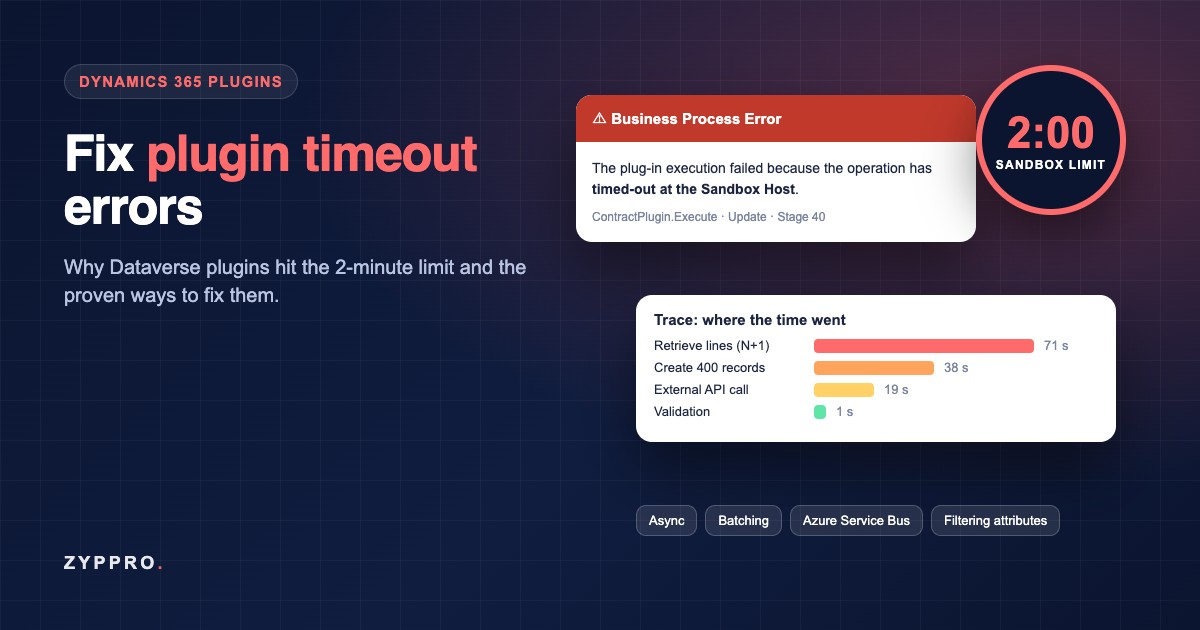
Few errors frustrate Dynamics 365 developers more than this one:
The plug-in execution failed because the operation has timed-out at the Sandbox Host.
Users see a failed save, integrations retry and fail again, and async system jobs pile up in a failed state. The good news is that plugin timeouts almost always have identifiable causes, and there are proven patterns to fix them.
This guide explains the timeout limit, how to find out what is really slow, and the fixes that work, from quick query tuning to moving heavy work out of Dataverse altogether.
Understanding the limit
In Dynamics 365 online and Dataverse, plugins run in the sandbox (isolation mode). A plugin execution has a maximum of 2 minutes to complete. This applies to both synchronous and asynchronous plugins. If the code is still running at that point, the platform stops it and throws a timeout error.
Synchronous plugins have an extra concern: they run inside the database transaction of the operation that triggered them. Long-running synchronous code doesn't just risk the 2-minute limit; it also holds database locks, slows other users and can cause SQL timeout or deadlock errors well before the 2 minutes are reached.
Key takeaway: making a plugin asynchronous does not remove the 2-minute limit. It removes the user wait and the transaction lock, but the code must still finish within the limit.
Common causes of plugin timeouts
From real projects, these are the usual suspects:
- Retrieving too much data:
ColumnSet(true), retrieving all records without filters, or paging through thousands of records. - N+1 query patterns: calling
RetrieveorRetrieveMultipleinside a loop for each record. - Too many create/update calls in one execution: for example creating 5,000 child records in a single plugin.
- Slow external calls: HTTP requests to third-party APIs that respond slowly or hang.
- Plugin chains and recursion: one plugin updates a record that triggers another plugin, which triggers another, multiplying execution time.
- Inefficient FetchXML: queries filtering on non-indexed columns, using
like '%text%', or complex link-entities on large tables. - Locking and blocking: synchronous plugins waiting on records locked by other transactions.
- Heavy computation: document generation, large string processing or complex calculations in the plugin itself.
Step 1: Diagnose before you fix
Don't guess. Measure.
Enable plugin trace logging
In Settings → Administration → System Settings → Customization, set Enable logging to plug-in trace log to Exception or All (use All only temporarily in production). Then add tracing to your code:
var tracing = (ITracingService)serviceProvider.GetService(typeof(ITracingService));
var sw = System.Diagnostics.Stopwatch.StartNew();
tracing.Trace("Start: retrieving related lines");
// ... work ...
tracing.Trace($"Retrieved lines in {sw.ElapsedMilliseconds} ms");
Timestamps around each block quickly show where the time goes.
Use the Plugin Registration Tool profiler
Profile the plugin, reproduce the issue, and replay the execution in Visual Studio to step through with the real context.
Check Application Insights
If your environment exports Dataverse telemetry to Application Insights, you can analyse plugin execution durations and failures over time. You can also use ILogger in plugins to write custom telemetry.
Check the execution context
Look at context.Depth, context.MessageName, context.Stage and context.Mode in your traces. A high depth points to recursion or plugin chains.
Check what else runs on the same message
Open the Plugin Registration Tool and list every step on the same table and message, including Power Automate flows and classic workflows. A timeout is often caused by the combination of several plugins and flows, not one slow piece of code.
Step 2: Quick wins in code
1. Retrieve only the columns you need
// Avoid
var account = service.Retrieve("account", id, new ColumnSet(true));

// Prefer
var account = service.Retrieve("account", id, new ColumnSet("name", "creditlimit", "ownerid"));
Retrieving all columns is slow and also triggers more work in the platform.
2. Use pre-images and post-images
Register images on the plugin step to get old and new values instead of calling Retrieve on the target record.
3. Remove queries inside loops
Replace per-record Retrieve calls with one RetrieveMultiple using a ConditionOperator.In filter, then work with an in-memory dictionary.
var productIds = lines.Select(l => l.GetAttributeValue<EntityReference>("productid").Id).Distinct().ToArray();
var query = new QueryExpression("product") { ColumnSet = new ColumnSet("name", "price") };
query.Criteria.AddCondition("productid", ConditionOperator.In, productIds.Cast<object>().ToArray());
var products = service.RetrieveMultiple(query).Entities.ToDictionary(p => p.Id);
4. Use filtering attributes
Register update steps with filtering attributes so the plugin only runs when relevant columns change. This alone often removes most executions.
5. Stop unnecessary recursion
Check context.Depth and exit early when appropriate, and avoid updating the same columns that trigger the plugin. Only update columns that actually changed.
6. Optimise FetchXML and QueryExpression
- Filter on indexed columns (primary keys, lookups, columns used in quick find or alternate keys).
- Avoid leading wildcards (
like '%value'). - Set
TopCountor paging limits. - Use
NoLockwhere appropriate for read-only queries.
7. Set timeouts on external HTTP calls
Never let an HTTP call wait indefinitely:
using (var client = new HttpClient())
{
    client.Timeout = TimeSpan.FromSeconds(15);
    client.DefaultRequestHeaders.ConnectionClose = true;
    var response = client.GetAsync(url).GetAwaiter().GetResult();
}
Fail fast with a clear error rather than letting the sandbox kill the execution.
8. Update only what changed
Create a new Entity object with only the ID and the changed columns when updating, rather than sending back a retrieved record with all its columns. Sending unchanged columns can trigger other plugins, workflows and audit entries unnecessarily.
Step 3: Change the execution pattern
When the work is genuinely large, code tuning is not enough. Change where and how it runs.
Pattern A: Move work from synchronous to asynchronous
If the user doesn't need the result immediately (for example recalculating totals or creating child records), register the step as asynchronous. The user's save completes quickly and no database transaction is held. Remember the 2-minute limit still applies.
Pattern B: Split work into batches
For large volumes, process a manageable batch (for example 200 records) per execution, then trigger the next batch. Common approaches:
- Create a "job" record with status and position; an async plugin processes one batch and updates the record, triggering the next run.
- Use a Power Automate flow or a scheduled process that processes batches in a loop.
Pattern C: Offload to Azure
For heavy or long-running processing, let Dataverse hand off the work:
- Register a service endpoint to Azure Service Bus (queue or topic), or a webhook to an Azure Function.
- Register an asynchronous step that posts the execution context to the endpoint, or call
IServiceEndpointNotificationServicefrom a plugin. - An Azure Function processes the message with no 2-minute sandbox limit, using the Dataverse SDK or Web API with an application user.
- The function writes results back to Dataverse and updates a status column.
This is the most scalable pattern for integrations, document generation and bulk updates.
Pattern D: Use Power Automate for orchestration
For moderate volumes and business logic that changes often, a Power Automate cloud flow triggered by Dataverse can replace complex async plugins. Flows have their own limits and are not suited to very high volumes, but they are easy to maintain.
Pattern E: Custom API plus async processing
Expose a custom API that quickly validates input and queues the work, returning immediately with a job ID. The heavy work runs asynchronously (in Azure or a flow), and the client checks status later.
Which pattern should you choose?
| Situation | Recommended pattern |
|---|---|
| Slow because of inefficient code | Quick wins (Step 2) |
| User doesn't need the result instantly | Async step (A) |
| Hundreds to thousands of records | Batching (B) or Azure (C) |
| External system is slow or unreliable | Azure Service Bus + Function (C) |
| Business users need to change the logic | Power Automate (D) |
| External callers start a long process | Custom API + async job (E) |
Step 4: Avoid patterns Microsoft warns against
- Don't use
ExecuteMultipleRequestorExecuteTransactionRequestinside plugins. Microsoft's guidance discourages them in plugin code because they can cause performance and timeout issues within the transaction. - Don't use parallel threads in plugins. The sandbox is not designed for multi-threaded execution, and it can cause unpredictable behaviour.
- Don't store state in static variables. Plugins must be stateless because instances are cached and reused.
- Don't run long synchronous logic on high-volume messages such as
RetrieveMultipleorRetrieve.
Step 5: Real-world example
Problem: A synchronous post-operation plugin on the Update of a contract created invoice schedule lines. Large contracts with several hundred lines timed out, and users lost their changes.
Diagnosis: Traces showed:
- the plugin ran on every update of the contract, even when unrelated fields changed
- for each line, the plugin retrieved the product and price list item separately (N+1)
- each line was created one by one, then a total was updated on the contract, which re-triggered the plugin
Fix:
- Added filtering attributes (start date, end date, amount, frequency).
- Retrieved all products and prices once, before the loop, into a dictionary.
- Exited when
context.Depth > 1for the total update. - Moved line generation to an asynchronous step and processed contracts with more than 300 lines through an Azure Function via Service Bus.
Result: saves completed in under two seconds, and no timeouts occurred, even for the largest contracts.
Frequently asked questions
Can I increase the 2-minute timeout in Dynamics 365 online? No. The sandbox limit for plugins in online environments is fixed. You must make the code faster or move the work elsewhere.
Does running the plugin asynchronously fix the timeout? Only if the work finishes within 2 minutes. Async removes the user wait and the transaction lock, but not the execution limit.
Why does the timeout only happen sometimes? Execution time depends on data volume, concurrent activity and external services. Large records, busy periods or slow APIs push borderline plugins over the limit.
Is a timeout the same as a "Generic SQL error"? Not exactly. SQL errors often come from blocking or deadlocks caused by long transactions, which are frequently related to the same root causes: long synchronous plugins and heavy queries.
Should I rewrite everything as Azure Functions? No. Use Azure for genuinely heavy or long-running work. Simple, fast validation and logic still belong in plugins, close to the data.
Troubleshooting checklist
- Plugin trace log enabled and timings added
- Filtering attributes set on update steps
- Only required columns retrieved
- No queries inside loops
- Recursion controlled with
Depthand change checks - HTTP calls have short timeouts
- Long work moved to async, batches or Azure
- No
ExecuteMultiple, threads or static state in plugins - Tested with production-like data volumes
How Zyppro can help
Zyppro Technologies has extensive experience diagnosing and fixing Dynamics 365 and Dataverse performance problems, from plugin timeouts and SQL errors to integration bottlenecks. We review your plugins, redesign heavy processes with async and Azure patterns, and provide live job support for developers facing production issues.
Stuck with a timeout? Visit www.zyppro.com or email contact@zyppro.com.